
Measuring and notes
Tape measure, ruler and framing square, distances to the origin, notes that stay attached to a part, and reference points that things snap to.
Questo capitolo non è ancora tradotto in italiano. Segue il testo inglese.
To build a part exactly, you need to measure. layerling has several tools for that. None of them ends up in an export. Wall thickness and gaps inside a part are best measured in the section view with «Misura».
The tape measure
The tape measure sits at the lower end of the camera bar on the left edge («Metro a nastro»). It measures distances between corners, edges and faces. A click on it opens five buttons. If they cover what you want to measure, drag them by the grip on the left anywhere on the workplane; a double-click on the grip puts them back:
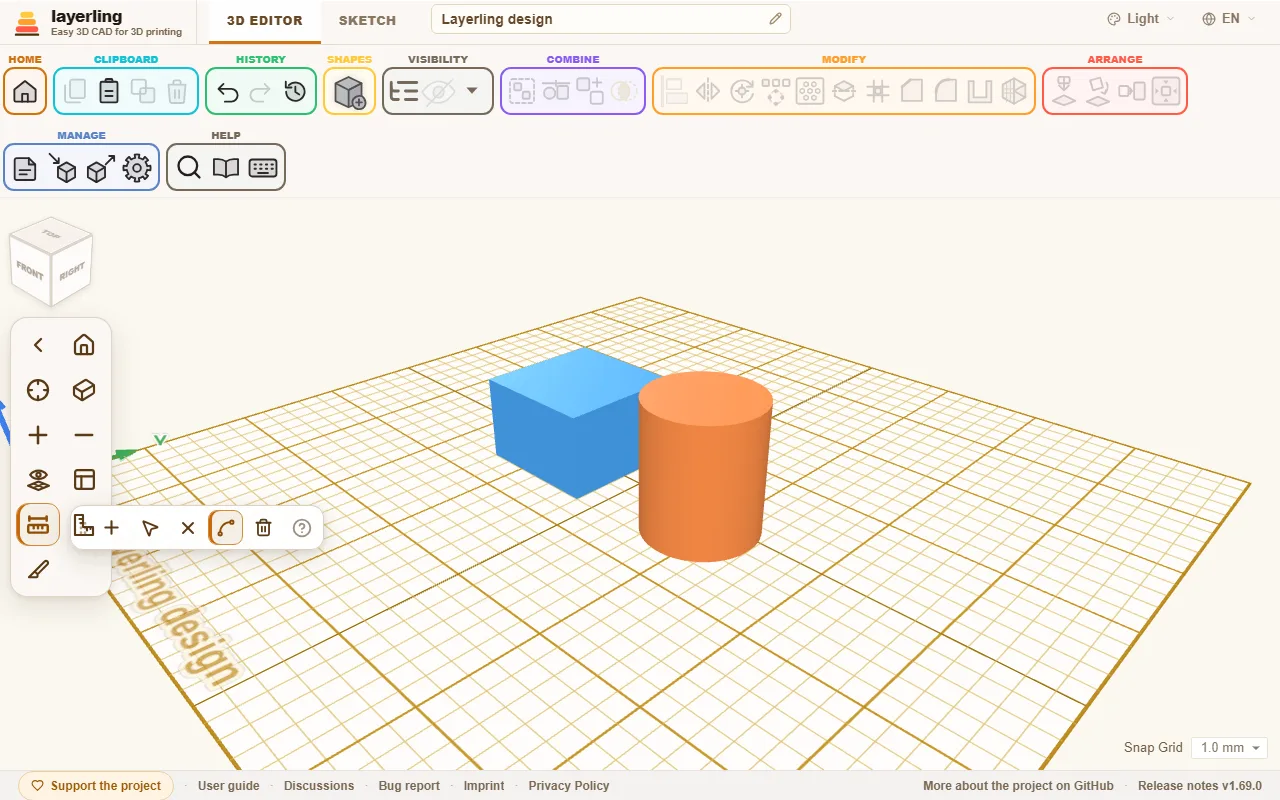
- «Aggiungi misurazione»: Click one point, drag to the next and click it. The distance is labelled.
- «Sposta i punti di misurazione»: Grab the points and move them, the number follows.
- «Elimina una parte della misurazione»: Afterwards click a measurement to remove it.
- «Misura gli spigoli interi»: A click on an edge measures all of it, the length of a circle for example. With this switched off, a click puts a point on the edge instead, and the second point goes anywhere, so you can measure the diameter or any other distance. Alt turns the switch round for one click. On a circle, the point across from the first one snaps in when the pointer comes near, and the points sit on the true circle, so the diameter comes out exact.
- «Elimina tutte le misurazioni»: Removes every measurement at once. Because this cannot be undone, layerling asks first; with no measurements there is nothing to do.
- «Segna il punto medio come riferimento»: Under the number of every measurement sits a small crosshair button. It puts a reference point in the middle of the measurement: after a click on a round edge, such as the rim of a hole, in the centre of that circle - on an imported mesh too, where nothing else marks the middle of a hole - and for a diameter or any straight measurement halfway along it. A shape you drag then snaps to the point with its centre. A point that is there already is not made twice. The tape measure snaps to a reference point like to a corner, so you can measure from the centre of a circle or from the middle of a line: mark it, then click the point.
Esc leaves measuring mode.
The ruler
You fetch the «Righello» from the shape library. It is purely a measuring tool: it appears in no export and can neither be grouped nor cut. For every body that touches or overlaps the ruler, it shows the extent as a floating number right in the view. You can change that number right there, and the body follows. The floating plus symbol creates a copy of the measured shape. Its printed scale is in millimetres; once the unit is switched to inches (the switch at the bottom right), it is in inches, with a line every sixteenth of an inch and the whole inches numbered.
The framing square
Sometimes you measure better at a right angle. Click «Posiziona la squadra» in the camera bar and then the workplane. A framing square with two arms at a right angle, with tick marks like a try square, is placed there. It has no body of its own either. Click close to the corner of a body, and its corner snaps exactly there.
The framing square lies on the workplane. If that sits on the side of a body, the square lies on that side too, see View and workplane. That is how you dimension on a vertical wall: put the workplane on the wall, place the square at its top left corner and click the handle until the arms point right and down.
- Dragging the handle moves it.
- A short click on the handle turns it by 90°.
- The × beside it removes it.
- The small button left of the handle switches what is measured from: the outside of a body (endpoint, an icon with lines) or its middle (midpoint, a crosshair). A small switch of the same kind sits beside each green number and sets that number alone: for a standing cylinder the middle in the two arms and the bottom in height, for a lying one the middle across and an end along. When all three agree again, the button at the handle shows the common mode.
If bodies stand at one of the arms, the framing square shows their dimensions automatically. That works on the base plate only, not on the side of a body.
When you select a body, the framing square shows in green how far it is from the corner, along both arms and in height. Click a green number to type a distance, and the body moves exactly there. With several bodies selected, they count as one: the ruler measures their shared outline, and a typed value moves them all together without changing their positions relative to each other.
The guide lines of the green numbers run along the floor, the plane the framing square lies in, to the point below or beside the body; the height has its own arrow. The switch of each number sits in the frame of the number. The arms and the ticks are lines in the room: a body in front of them hides them, as a real square would be hidden. The small eye below the handle switches that: with the eye struck through, bodies hide the square (the start); with the eye open, the square stays in view over everything. The numbers on the arms fade where a body stands in front of them.
With the midpoint, the green numbers count to the middle of the body, in height as well. That way you place a sphere with its centre exactly 15 mm from an edge, without subtracting the radius. On a wall you place a hole 40 mm from the left and 190 mm from the top like this: select the hole, switch to midpoint, type 40 and 190. The height there counts outward from the wall.
Both the tape measure and the framing square stay where they are while you sketch and come back to the 3D view. They are not saved with the design and not in the history, and they go when you reload the page.
Distances to the origin and while moving
In the settings under «Aspetto» there are two switches for live dimensions:
- «Mostra le dimensioni durante lo spostamento» shows by how much you move while dragging.
- «Mostra le distanze dall'origine» shows the distances of the selection to the origin of the plate, also with several selected bodies.
With «Dimensioni sempre visibili» the dimensions stay visible permanently.
Notes
A note records what the geometry does not say: "This screw is 0.3 mm too tight", "print the lid yet", "dimension from Peter". Place one with «Nota» or the N key.
- If you place the note on a body, it travels with it.
- If you place it beside, it stays on the workplane («Sul piano di lavoro»).
- «Scollega dall'oggetto» releases an attached note from the body.
- «Raggruppa» takes an attached note into the group; «Separa gruppo» hands it to the visible part under it, a group inside included. While a group is open with «Modifica gruppo», its notes move with the part under them and go back to the group with «Fine»; cancelling puts them back as they were.
- If its body is deleted, or no visible body is under it any more, the note stays where it stood, on the workplane.
- Dragging moves the note, a click opens it for editing.
- While you write, Enter keeps the text and Esc puts it back to how it was before you started; Shift+Enter starts a new line.
Notes are saved in the design, appear in no export and can be shown or hidden with «Mostra note e punti».
Reference points
A reference point is a bare mark in space, like a pencil mark or a layout point in a workshop: it belongs to no body, is never printed, and other things snap to it. Right-click a body and choose «Segna il centro», «Segna gli angoli» or «Segna i punti medi degli spigoli»: the points appear on the top face of the body (of the whole selection, if you selected several).
- Drag a point to move it, or click it to see its coordinates and type new ones; they use the unit you set. Each card can be dragged away by its title if it covers something, on its own: the others stay where they are, and a double-click on the title puts it back. The card you touched last stands in front of the others. Delete all in a card, or in the right-click menu, deletes every point at once. «Elimina» removes it.
- The tape measure can mark a point too: «Segna il punto medio come riferimento», the crosshair button under a measurement, puts one in its middle, in the centre of a round hole for example. And it measures from a point: the tape snaps to reference points like to corners.
- When you drag a shape, its edges and its centre snap to a point, like they snap to other shapes («Aggancia alle altre forme durante lo spostamento»). The framing square snaps to points too.
- Points are saved in the design, appear in no export, and are shown or hidden together with the notes by «Mostra note e punti».
- An AI can mark, list and remove them with
layerling_add_reference_points,layerling_list_reference_pointsandlayerling_remove_reference_points.