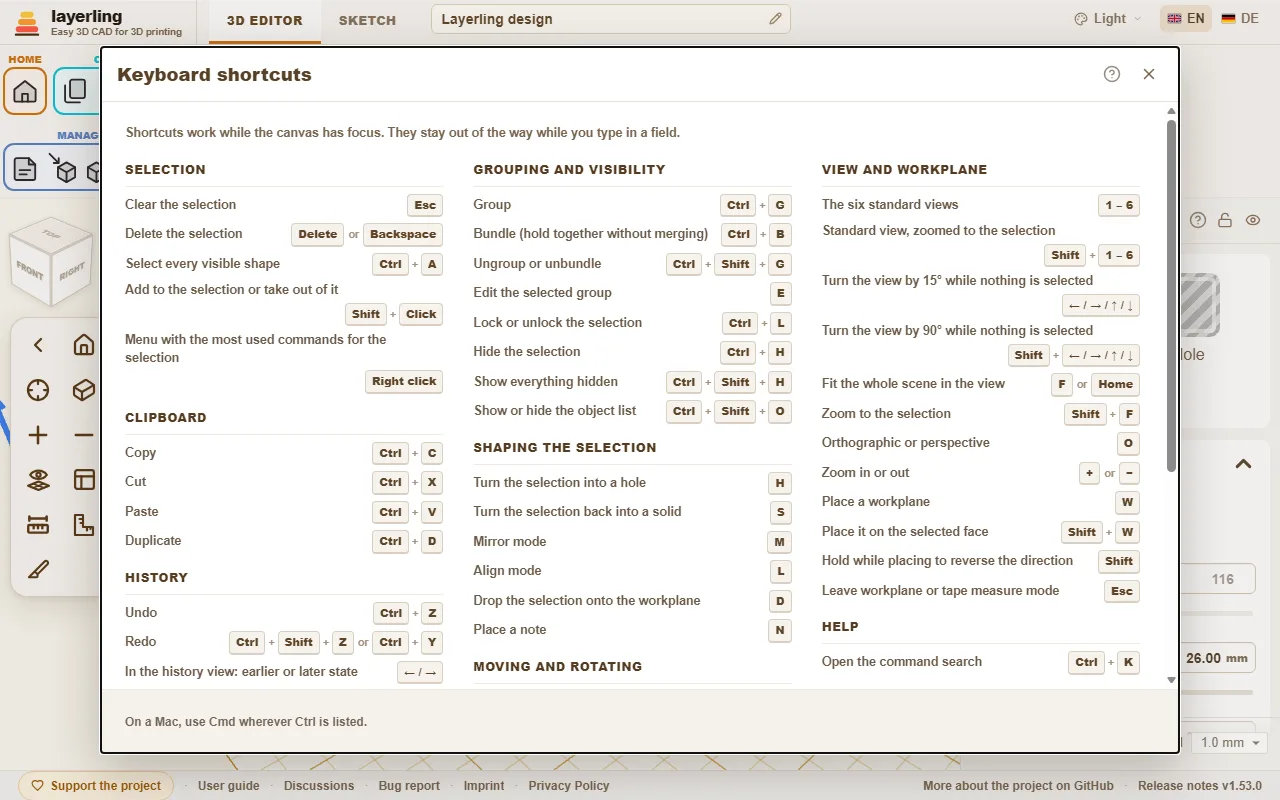
All keys at a glance, taken straight from the program so the list is always right.
この章はまだ日本語になっていません。このあとは英語で書かれています。
The shortcuts work as long as the workplane has the focus. While you type in a field they keep out of the way. On the Mac, Cmd applies wherever Ctrl is listed here.
In the editor, 「キーボードショートカット」 in the 「ヘルプ」 area opens the same list as a window. The printer button in the window (「印刷またはPDFで保存」) prints the list on its own, black on white and in large type; the print dialog of the browser also offers to save it as a PDF.
The keyboard shortcuts window in the editor.
Command search
Can't find a tool? Press Ctrl+K or click the magnifying glass in the 「ヘルプ」 area, then type what you are looking for: a tool ("fillet", "mirror"), a shape ("cylinder") or a command ("export", "undo"). Move with the arrow keys and press Enter, or click the entry.
The search understands the English and the German word alike and ignores capital letters and umlauts: "aushoehlen" finds 「中空にする」.
Every entry shows the keys that do the same and the area of the toolbar it lives in, so you learn where it is.
Entries that are greyed out cannot run right now, mostly because nothing is selected. They stay in the list so the search still tells you where the tool is.
The guide you are reading has a search box too, at the top of every page: type a word or two and it lists the sections that contain all of them, with the matching words marked. Click one, or press Enter for the first, to jump straight there.
A shape's name adds that shape to the workplane, just like clicking it in the shapes menu.
With an empty field the search lists the commands you used last at the top.
The name of a body in your design finds that body and selects it, which helps in a design with many parts. Bodies only appear once you type.
It works in sketch mode as well, with the sketch tools.
Interactive Help
Cannot find where to read about a button or a field? Let the program take you there. Click the question mark in the 「ヘルプ」 area, or press Shift+F1. The pointer turns into a question mark, and whatever lies under it is outlined.
Click a button, a field, a switch, a handle, a group of the ribbon or the title bar of a window. It does not do what it normally does. A small window opens instead, with the name of the element, a short summary of the part of this guide that is about it, up to two more places that mention it, and 「ガイドで開く」.
The help is about the element you pointed at, not about the whole window around it. An element without a name of its own uses the nearest one around it; inside a window it falls back on that window's question mark.
「ガイドで開く」 opens the guide at that section in a new tab. There the section is outlined in colour, from its heading to its end, so you see where it starts and stops.
If the guide says nothing about the element, the window says so and offers 「ガイドを検索」.
Esc, or the question mark again, leaves the mode. On a touch screen there is no hover: a tap on an element opens the window straight away.
The window moves by its title bar like the other windows. The program finds the section by the name of the element - the label on a button, the name of a field - because this guide writes every button as it is called in the program. It looks it up in the same search as the box at the top of each guide page, in the language you are using, and runs entirely in your browser.